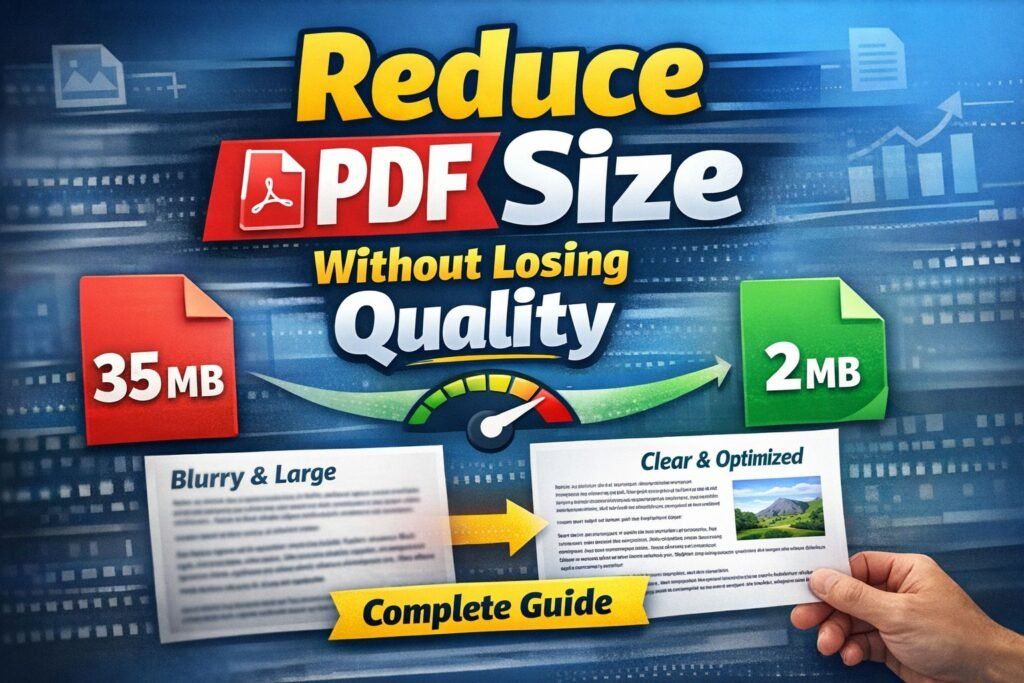
Reduce PDF Size Without Losing Quality — Complete Practical Guide
Large PDF files are one of the most common digital problems today.
You download a document… and suddenly it’s 35MB, email rejects it, WhatsApp won’t send it, and websites refuse to upload it.
The worst part?
When you compress it — the text becomes blurry and images look terrible.
In this complete guide you’ll learn how to reduce PDF size without losing quality using professional techniques that actually work.
👉 You can also instantly compress files here:
https://quicktoolsbox.online/free-pdf-compressor-reduce-pdf-size/
Table of Contents
-
Why PDF files become too large
-
What NOT to do when compressing PDFs
-
Best ways to reduce PDF size without losing quality
-
Manual professional optimization methods
-
Email & WhatsApp size limits explained
-
Best file size for web & SEO
-
Security tip before sharing PDFs
-
Final checklist
Why PDF File Size Becomes Too Large
Most people think PDFs are large because of “pages”.
That’s incorrect.
PDF size depends on embedded data, not page count.
1. High Resolution Images (Biggest Reason)
Scanned documents are usually 300-600 DPI.
For screens, only 96-150 DPI is required.
A 5-page scan can become 40MB.
2. Embedded Fonts
Some editors embed entire font libraries inside the PDF — even if you use 5 letters.
3. Metadata & Hidden Layers
PDFs store:
-
editing history
-
hidden layers
-
thumbnails
-
preview images
-
annotations
These silently increase size.
4. Vector + Raster Combination
Design tools export both:
-
vector graphics
-
bitmap previews
Double storage = double size.
5. Camera Photos Instead of Scans
Phone camera documents often produce 8-12MB per page.
What NOT To Do When Compressing PDFs
Most users destroy quality because they:
❌ Screenshot pages
❌ Convert PDF → Image → PDF
❌ Use random mobile apps
❌ Reduce DPI to 50
❌ Convert to Word then back to PDF
These methods permanently damage readability.
Best Ways to Reduce PDF Size Without Losing Quality
Here are the safest working methods.
Method 1 — Smart Online Compression (Recommended)
The easiest method is using a proper compression engine that optimizes images but keeps text sharp.
Use:
👉 https://quicktoolsbox.online/free-pdf-compressor-reduce-pdf-size/
This tool:
-
removes hidden metadata
-
downscales images intelligently
-
keeps text vector-sharp
-
maintains readability
Typical results
| Original | After |
|---|---|
| 25MB | 3-5MB |
| 12MB | 1-2MB |
| 5MB | 500KB-1MB |
No visible quality loss.
Method 2 — Reduce Scan DPI (Correct Way)
If you scan documents:
| Purpose | Best DPI |
|---|---|
| Reading on screen | 150 DPI |
| Printing | 300 DPI |
| Archive | 300-400 DPI |
Scanning at 600 DPI only wastes storage.
Method 3 — Remove Embedded Fonts
In Adobe Acrobat:
Huge reduction possible.
Method 4 — Convert Color Mode
RGB color scans are large.
Convert to:
-
Grayscale for documents
-
Black & White for text
You can reduce size 80% instantly.
Method 5 — Remove Hidden Data
PDFs contain invisible data.
Use:
Removes:
-
form data
-
comments
-
layers
-
thumbnails
Method 6 — Optimize Images Instead of Destroying Them
Bad compression blurs text.
Smart compression reduces resolution only where safe.
That’s why using a specialized compressor matters.
Again, fastest method:
👉 https://quicktoolsbox.online/free-pdf-compressor-reduce-pdf-size/
Manual Professional Optimization Workflow
This is how publishers prepare PDFs:
-
Scan at 300 DPI
-
Convert to grayscale
-
Remove fonts
-
Remove metadata
-
Compress images to 150 DPI
-
Export optimized PDF
Result: 90% smaller file, same readability
Email & WhatsApp File Size Limits
| Platform | Limit |
|---|---|
| Gmail attachment | 25MB |
| 16MB | |
| Facebook upload | ~10MB |
| Job portals | 2MB-5MB |
That’s why resumes and assignments fail uploads.
Best PDF Size for Websites & SEO
Google recommends fast loading documents.
Ideal sizes:
-
Resume: 500KB-1MB
-
Ebook: under 8MB
-
Forms: under 2MB
Large PDFs reduce page speed ranking.
Security Tip Before Sharing PDFs
Before uploading documents online, protect them with a strong password.
Generate one safely here:
https://quicktoolsbox.online/free-secure-password-generator/
Weak passwords expose:
-
ID cards
-
bank statements
-
certificates
External Resource (DoFollow Helpful Reference)
For technical PDF standards you can read:
https://www.adobe.com/acrobat/resources/how-to-compress-pdf.html
Final Checklist — Reduce PDF Size Without Losing Quality
Before sharing any PDF:
✔ Remove hidden data
✔ Lower DPI correctly
✔ Convert color to grayscale
✔ Remove unused fonts
✔ Compress intelligently
✔ Add password protection
Or simply use the optimized tool:
👉 https://quicktoolsbox.online/free-pdf-compressor-reduce-pdf-size/
Conclusion
Large PDFs are not caused by page count — they are caused by inefficient storage of images, fonts, and hidden data.
The good news is you can reduce PDF size without losing quality by using proper compression techniques instead of destructive methods.
If you need a quick solution, use a safe compression tool.
If you need full control, follow the professional workflow.
Either way — you never have to send a blurry document again.
Adobe official guide on PDF optimization:
How PDF compression works (Adobe)
International Organization for Standardization PDF standards:
ISO 32000 — Document management PDF specification
Explanation of image DPI and resolution (printing industry reference):
Understanding DPI & image resolution
Image Suggestion (Add to article)
Add an image and set alt text:
Alt text: reduce PDF size without losing quality
Leave a Reply