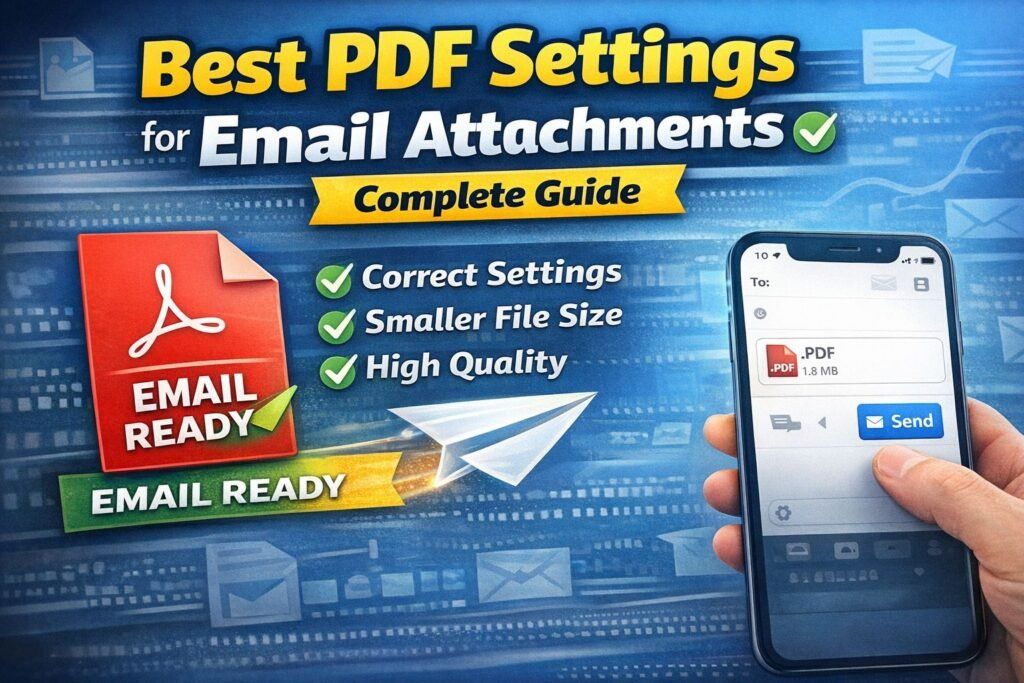
Best PDF Settings for Email Attachments — Complete Guide
Many people try to send documents by email but the attachment fails.
The reason is simple: wrong file settings.
If you use the best PDF settings for email attachments, your file will send instantly without Gmail errors, upload failures, or blurry text.
This guide shows the exact professional configuration used by offices and companies worldwide.
Table of Contents
-
Why email attachments fail
-
Maximum email attachment size
-
Best PDF settings for email attachments
-
Recommended DPI and resolution
-
Color mode settings
-
Font embedding rules
-
Compression method (safe)
-
Quick automatic solution
-
Final checklist
-
FAQ
Why Email Attachments Fail
Emails don’t reject files randomly.
They reject files that exceed server limits or load too slowly.
Common causes
-
File too large
-
High resolution scans
-
Embedded fonts
-
Camera photos inside PDF
-
Incorrect export settings
Maximum Email Attachment Size
| Email Service | Max Attachment Size |
|---|---|
| Gmail | 25 MB |
| Outlook | 20 MB |
| Yahoo | 25 MB |
| University portals | 5-10 MB |
| Job websites | 2-5 MB |
So the goal is simple:
👉 Keep PDF under 5 MB
Best PDF Settings for Email Attachments (Professional Settings)
Use these exact settings while exporting:
Resolution
150 DPI (perfect balance of clarity & size)
Image Compression
JPEG Medium (NOT Maximum)
Color Mode
Grayscale for documents
RGB only if necessary
Fonts
Embed subset only
Metadata
Remove hidden data
These are the best PDF settings for email attachments used in offices because they keep text sharp while reducing file size.
Recommended DPI Settings
| Purpose | DPI |
|---|---|
| Email sending | 150 DPI |
| Printing | 300 DPI |
| Archive | 300-400 DPI |
| Web reading | 120-150 DPI |
Using 600 DPI causes massive files and email failure.
Color Mode Settings
Color dramatically increases size.
| Mode | File Size |
|---|---|
| Color | Very Large |
| Grayscale | Medium |
| Black & White | Smallest |
Always convert documents to grayscale for best PDF settings for email attachments.
Font Embedding Rules
Wrong font settings can double file size.
Correct option:
Embed only used characters
Never embed full fonts.
Compression Method (Safe Way)
You should compress images, not text.
Smart compression keeps text vector-sharp.
Use our tool here:
https://quicktoolsbox.online/free-pdf-compressor-reduce-pdf-size/
It automatically applies the best PDF settings for email attachments.
Quick Automatic Solution
Instead of editing settings manually, upload your file:
👉 https://quicktoolsbox.online/free-pdf-compressor-reduce-pdf-size/
Your PDF becomes:
-
smaller
-
readable
-
email-friendly
Security Before Sending Documents
Protect documents before emailing:
https://quicktoolsbox.online/free-secure-password-generator/
Never send IDs or certificates without password protection.
Trusted External Resources
For technical understanding of the best PDF settings for email attachments, these official guides help:
Gmail attachment size limits (Google Official)
Adobe PDF optimization guidelines
FAQ — Best PDF Settings for Email Attachments
What is the best PDF size for email attachments?
The ideal size is under 5 MB so the email always sends successfully.
What DPI should a PDF be for email?
150 DPI is the best PDF settings for email attachments because it keeps clarity while reducing file size.
Why does Gmail reject my PDF attachment?
Usually the PDF contains high resolution images, full font embedding, or exceeds 25 MB.
How can I reduce PDF size without losing quality?
Use a smart compression tool:
Free PDF Compressor
Final Checklist — Best PDF Settings for Email Attachments
- 150 DPI resolution
- Grayscale color mode
- Subset embedded fonts
- Remove metadata
- Compress images
- Keep file under 5 MB
By following these best PDF settings for email attachments, your files will upload faster, send successfully, and stay readable on all devices.
Pro Tip: If your document still fails, compress it instantly:
Reduce PDF size without losing quality
Final Checklist — Best PDF Settings for Email Attachments
Before sending email:
✔ 150 DPI
✔ Grayscale
✔ Remove metadata
✔ Subset fonts
✔ Compress images
✔ Under 5 MB
Now your email attachments will always send successfully.
Leave a Reply