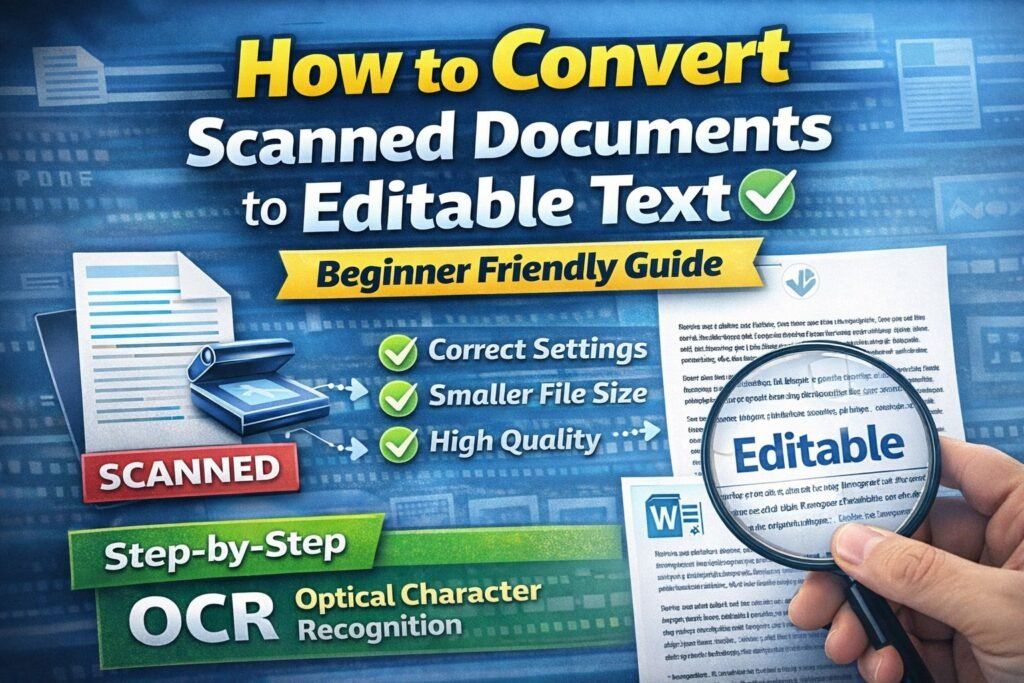
Convert Scanned Documents to Editable Text — Complete Beginner Guide
Have you ever received a scanned PDF and tried to copy the text… but nothing happened?
You drag your mouse over the words — no selection.
You press Ctrl+C — nothing copies.
You try editing — impossible.
That’s because a scanned document is actually just a photo of text, not real text.
To edit it, you must first convert scanned documents to editable text using a technology called OCR (Optical Character Recognition).
In this beginner-friendly guide, you will learn multiple easy methods — computer, mobile, and free tools — even if you have never done it before.
Table of Contents
-
What is OCR
-
Why scanned files cannot be edited
-
Best automatic method (recommended)
-
Convert scanned PDF to Word manually
-
Mobile phone method
-
Improve accuracy tips
-
Common mistakes and fixes
-
After conversion — file optimization
-
Final checklist
-
FAQ
What is OCR?
OCR means Optical Character Recognition.
It reads letters inside an image and turns them into real editable text.
Example
-
A printed paper → scanned → becomes an image
-
OCR reads the letters → converts to actual text
After OCR conversion you can:
-
edit text
-
copy content
-
search words
-
translate
-
change formatting
Without OCR → locked document
With OCR → fully editable document
So whenever you want to convert scanned documents to editable text, you are actually performing OCR.
Why Scanned Documents Cannot Be Edited
Scanners and cameras don’t understand letters — they only capture pixels.
So a scanned PDF contains:
-
image layers
-
not characters
-
not fonts
That is why:
-
text selection fails
-
editing is impossible
-
search doesn’t work
The file looks like a document, but internally it’s just a photograph.
Method 1 — Fastest Automatic Method (Recommended)
This is the easiest way for beginners.
Steps
-
Upload scanned document
-
OCR detects characters
-
Download editable file
After processing, the file becomes:
-
editable Word
-
searchable PDF
-
copy-paste enabled
If the file is large after conversion, reduce its size safely:
https://quicktoolsbox.online/free-pdf-compressor-reduce-pdf-size/
Method 2 — Convert Scanned PDF to Word Using Microsoft Word
Most people don’t know this — Word has built-in OCR.
Steps
-
Open Microsoft Word
-
Click File → Open
-
Select scanned PDF
-
Word converts automatically
Best for
-
resumes
-
letters
-
simple documents
Not ideal for
-
tables
-
complex layouts
-
forms
Method 3 — Convert Using Google Docs (Free Method)
Google Docs provides free OCR online.
Steps
-
Upload PDF to Google Drive
-
Right click file
-
Select Open with → Google Docs
-
Editable text appears below image
Works very well for clean scans.
Method 4 — Convert Using Mobile Phone Camera
You don’t need a computer to convert scanned documents to editable text.
Android / iPhone Method
-
Open Google Drive app
-
Tap + → Scan
-
Capture document
-
Upload to Drive
-
Open with Google Docs
-
Copy editable text
Now your phone acts as a portable scanner + OCR converter.
Tips for Maximum OCR Accuracy (Very Important)
Good input = perfect output
Follow these rules:
✔ Scan at 300 DPI
✔ Use white background
✔ Avoid shadows
✔ Keep page straight
✔ Use clear fonts
✔ Clean camera lens
Bad Scans Cause:
-
missing letters
-
merged words
-
wrong symbols
Common Problems and Fixes
Text missing after conversion
Cause: low contrast
Fix: increase brightness before scanning
Words joined together
Cause: tilted page
Fix: straighten image
Wrong characters (O instead of 0)
Cause: unusual font
Fix: change font or proofread
Table formatting broken
Cause: OCR reads lines as text
Fix: manually adjust in Word
After Conversion — Optimize File Size
Editable files can become heavy after OCR because they contain:
-
fonts
-
layers
-
formatting
Reduce file size here safely:
https://quicktoolsbox.online/free-pdf-compressor-reduce-pdf-size/
This keeps quality but makes sharing easier.
Final Checklist
Before conversion:
-
clear scan
-
flat page
-
no shadow
-
high contrast
After conversion:
-
proofread text
-
fix formatting
-
compress file
-
save backup
Now you can successfully convert scanned documents to editable text anytime.
FAQ
What format should I save after OCR?
DOCX (Word) is best for editing.
Is OCR always accurate?
Usually 90–99% depending on scan quality.
Can handwritten notes be converted?
Only neat handwriting — printed text works best.
Is OCR free?
Yes, many tools provide free OCR conversion.
Helpful External Resources About OCR
To better understand how OCR works when you convert scanned documents to editable text, you can read these official guides:
Google Docs OCR guide (Official Google Support)
Microsoft Word PDF conversion explanation
Adobe OCR technology overview
These resources explain the technology behind OCR and why it can convert scanned documents to editable text accurately.
Conclusion
Scanned files are not broken — they are just images.
You only need OCR to unlock them.
Once you learn how to convert scanned documents to editable text, you can reuse any printed document digitally — resumes, assignments, contracts, or books.
After converting, always optimize the file size before sending.
Leave a Reply